Screenshot
Save the current remote display as an image — useful for documenting critical screens.
How to Capture
Click the screenshot icon in the top bar.
| Icon | Status |
|---|---|
 | Click to capture a screenshot |
Verification: A successful screenshot triggers a "Screenshot captured" toast notification at the top. The file auto-saves to your browser's download directory. If there's no display signal, the screenshot will fail.
File Naming
flexkvm-screenshot-YYYY-MM-DDTHH-MM-SS.{extension}
e.g., flexkvm-screenshot-2026-05-12T21-44-20.png
Format & Quality
Adjust in Settings → System → Screenshot Settings.
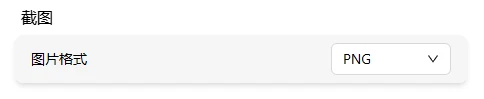
Format
| Option | Description |
|---|---|
| PNG | Lossless, best quality, larger file |
| JPG | Lossy, smaller file |
Quality
Only affects JPG:
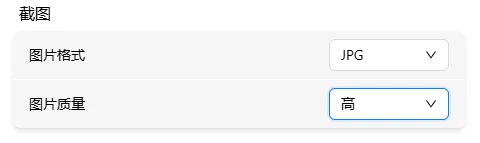
| Option | Description |
|---|---|
| Low | Smallest file |
| Medium | Daily use |
| High | More detail |
| Best | Maximum quality |
PNG is always maximum quality — this setting doesn't affect it.
Screenshot not working? → Check if your browser is blocking downloads.
Blurry image? → Screenshot resolution matches the remote display. For sharper screenshots, increase the remote display resolution first.