frp Tunneling
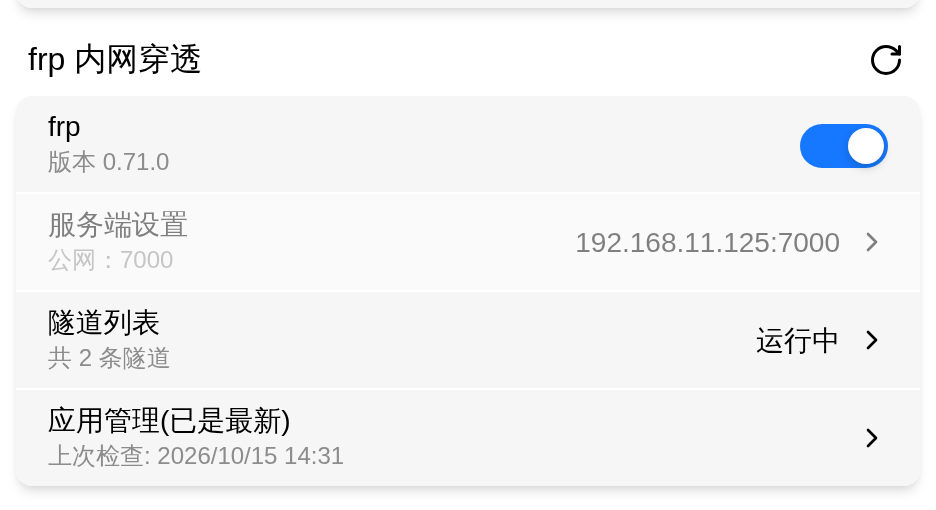
frp is a port-mapping tool: the frpc client on your device connects out to a server you own with a public IP (frps) and maps a port on FlexKVM to a public port on that server. From anywhere that can reach the server you can then open the device's web interface or SSH — the device itself needs no public IP and no router port forwarding.
Where: Settings → App → frp Tunnel
Prerequisites
FlexKVM only runs the frpc client — the frps server is yours to prepare: a server with a public IP, with frp installed and frps running. See the frp documentation for installing and configuring the server; this page doesn't cover it.
Write down three things on the server side; they must match frps:
| What you need | Description |
|---|---|
| Server address | Domain name or public IP of the server |
| Server port | frps bindPort (default 7000) |
| Auth token | Must match if frps has a token configured; may be left empty otherwise |
The server firewall (plus the security group on cloud hosts) must allow frps' bindPort and the public port of every tunnel you create.
frp does port mapping, not mesh networking: the device gets no virtual IP, and the server only forwards a single port to it. For two-way connectivity with your computer (mutual ping, reaching the whole subnet), use Tailscale.
Install
The app may not be on the device yet — the card then shows a yellow App not installed notice, with all service controls (toggle, server settings, tunnels) collapsed and only the App Management entry left.
- Click App Management on the card
- Click Check for Updates
- Click Download (you can cancel at any time); the package is verified automatically when the download finishes
- Once verified the button becomes Install Now — click it to install
Verify: After installation the "App not installed" notice is gone, the toggle's subtitle shows the version (e.g.
Version 0.71.0), and all service controls appear.
Download source, failure reasons and firmware requirements are covered in App Management.
Enable the Service
Enabling requires the server address to be set (the auth token is optional): with an empty address the toggle is grayed out and the row says "Fill in the server address before enabling frp". Once the address is set, turn the toggle on — the backend generates frpc.toml and starts the frpc process.
Verify: With the toggle on, the Tunnels row shows Running on the right.
Runtime state is pushed after backend polling (tunnel start/stop, server reconnects), so no manual refresh is needed; click the refresh icon at the top right of the card (Refresh Status) to query frpc's admin API immediately.
If writing the config or starting the process fails, the toggle falls back to its previous position — you won't be left with a switch that says "on" while nothing runs.
Server Settings
Click Server Settings to open the form; all three fields must match frps:
| Field | Description |
|---|---|
| Server Address | Domain name or IP of frps, e.g. frps.example.com |
| Server Port | frps bindPort, default 7000 |
| Auth Token | Must match frps; leave empty to keep unchanged (the token is never shown back) |
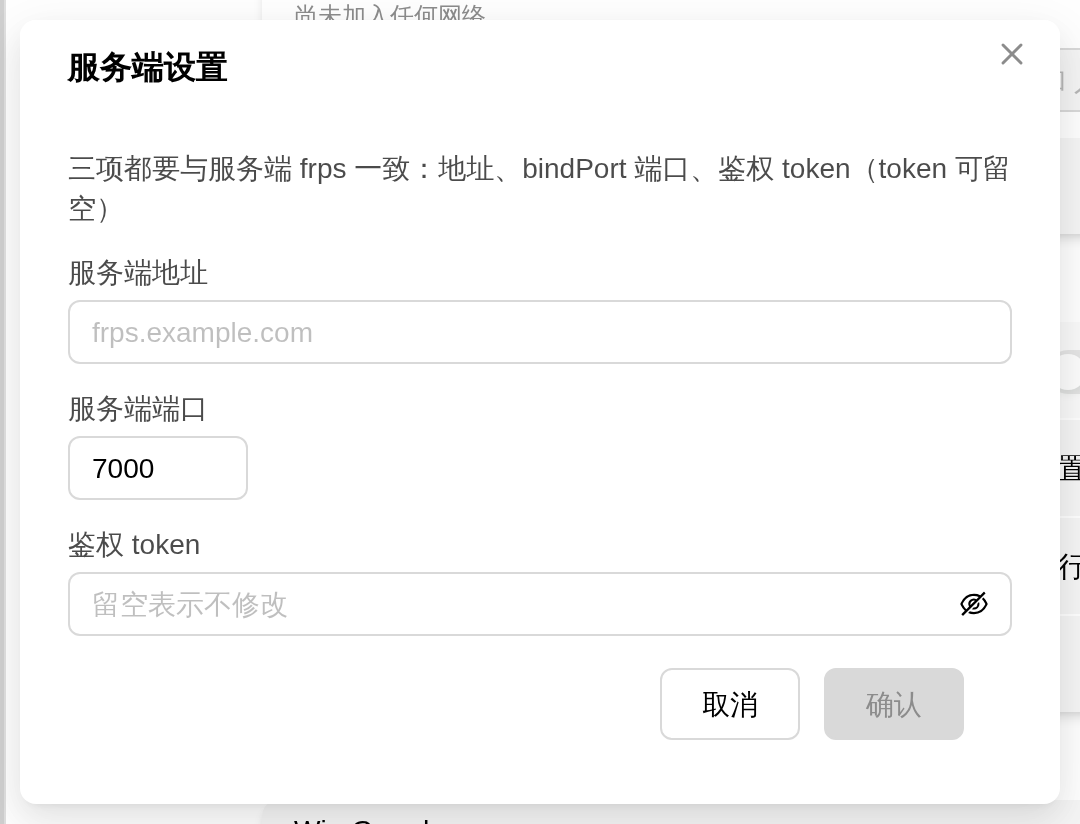
The Server Settings row shows address:port on the right, or Not set if it was never filled in.
No edits while running: this row is grayed out while frpc is running, because changing connection parameters forces a reconnect that tears down every tunnel. Stop the service first, then edit — saving writes to disk and the next enable connects with the new parameters. While running, the row's subtitle reads Public: <port>; when stopped it goes back to "frps address and auth token (optional); applies on next enable".
Verify: After saving, that row shows
frps.example.com:7000; turn the toggle back on and the Tunnels row shows Running with your tunnels coming back.
Add, Edit and Delete Tunnels
Click Tunnels to open the list; the Add Tunnel button sits at the bottom right (an empty list says "No tunnels yet — add one below").
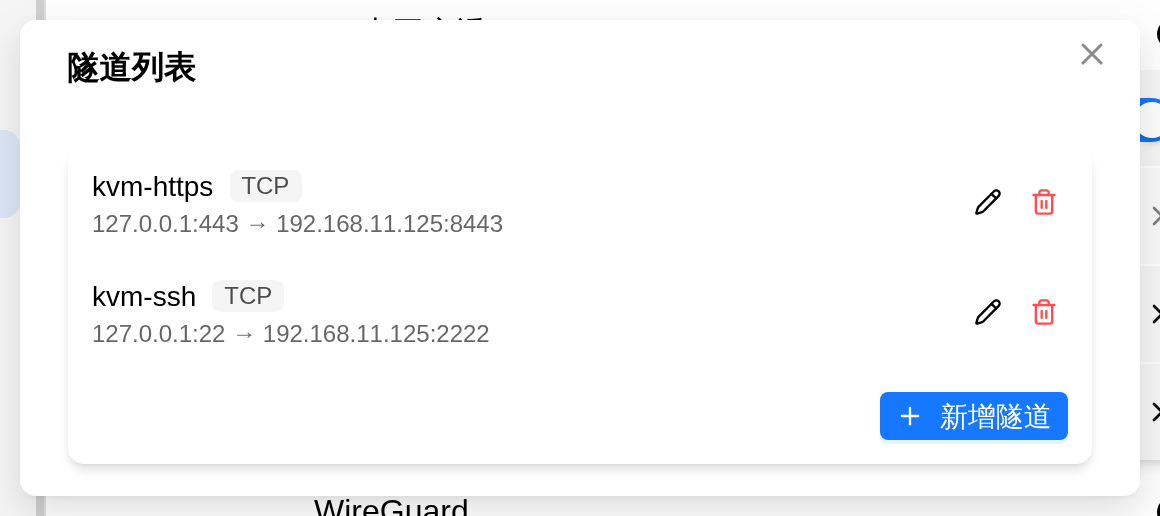
A tunnel has just 5 fields:
| Field | Description |
|---|---|
| Name | Unique identifier of the tunnel; saving under an existing name overwrites it; letters, digits, - and _ only |
| Type | Only TCP / UDP |
| Local Address | The local address to expose, defaults to 127.0.0.1 |
| Local Port | The port actually serving on the device |
| Public Port | The port on frps (its address is decided by frps and is not entered here) |
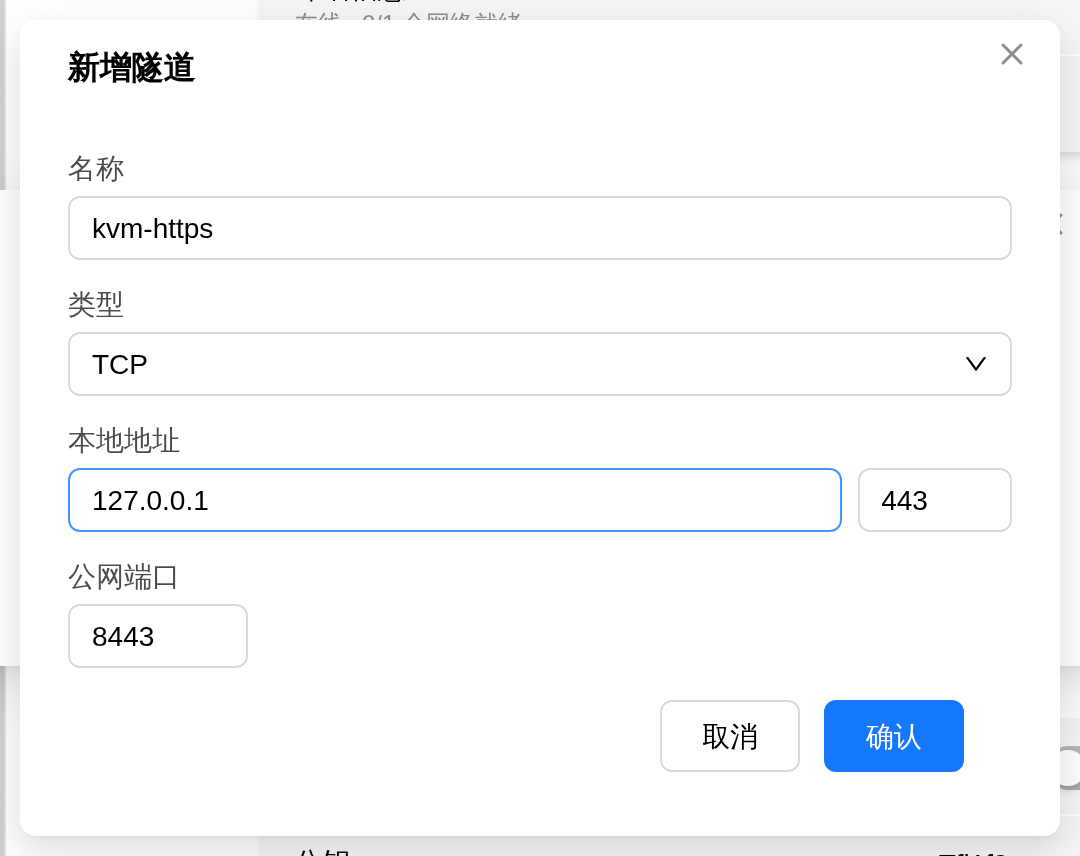
To expose the device web interface, for example: Local Address 127.0.0.1, Local Port 443, Public Port an unused port on the server (e.g. 8443) — then browse to https://<frps address>:8443.
Ports must be 1–65535 and names are limited to 63 characters; at most 16 tunnels — saving beyond that reports "Tunnel limit reached (16)". The form exposes only these 5 fields; frpc's advanced options (encryption, bandwidth limit, custom domains) are not part of it.
Click Confirm to save — it takes effect hot, without dropping existing connections (unlike changing the server parameters).
Edit
Click the pencil icon in the list → the Edit Tunnel dialog opens with the same fields; click Confirm when done. Renaming adds a new tunnel: only a matching name overwrites, so the old tunnel stays in the list and has to be deleted separately.
Delete
Click the trash icon in the list → the deletion is sent immediately, with no confirmation prompt.
Verify: The saved tunnel appears in the list — type badge next to the name, and
127.0.0.1:443 → frps.example.com:8443on the second line. A healthy tunnel shows no extra status text.
Tunnel List and Runtime State
- The Tunnels row shows the overall state on the right: Running / Stopped / Admin API unreachable; the subtitle reads "N tunnel(s)"
- Each entry shows name, type and
local address → public address. A healthy tunnel carries no status text;waitanderrorappear next to the name, and hovering over the status text reveals the reason for an error - Add Tunnel and the per-row edit/delete buttons are only clickable when the app is installed, the service is enabled, the process is running and the admin API is reachable — otherwise they are grayed out
- The list reflects the runtime state reported by frpc: with the service stopped the list is empty. Your configuration is not lost — the tunnels come back after you re-enable it
Verify: Turn the toggle off and open the tunnel list — it is empty and says "No tunnels yet — add one below". Turn the toggle back on and click Refresh Status — every tunnel returns. That's the runtime state, not the configuration stored on the device.
App Management
The App Management entry on the card handles downloading, installing and uninstalling this app:
| Action | Description |
|---|---|
| Download Source | Choose whether packages come from Gitee or GitHub |
| Check for Updates | Fetch the latest version info; the last check time is shown afterwards |
| Download / Install Now | Download and verify the package, then install; a download can be cancelled |
| Uninstall | Stop frpc and delete the app files (with a confirmation prompt) |
- Upgrades are "stop → swap directory → start";
frpc.tomland the tunnel configuration live outside the install directory, so upgrading never loses your configuration - Uninstalling turns the toggle back off and likewise keeps the tunnel configuration — the tunnel table is still there after a reinstall
Version states and failure reason categories are covered in App Management.
Troubleshooting
| Symptom | Likely cause | Try this first |
|---|---|---|
| Card shows "App not installed" | The app is not on the device yet | Click App Management → Check for Updates → Download → Install Now |
| Toggle grayed out | App not installed, or server address not filled in | Read the hint under the toggle row and set the server address |
| Server Settings row won't open | frpc is running (no edits while running) | Stop the service, edit, then enable again |
| Tunnel list is empty | Service is stopped (the list shows runtime state), or no tunnels configured yet | Enable the service; if nothing is configured, click Add Tunnel |
A tunnel stays in wait | Its public port is blocked or taken on the frps side | Open that public port in the server firewall and security group, or pick another port |
A tunnel shows error | frps rejected the tunnel | Hover the status text for the reason and retry with another public port |
| Shows "Admin API unreachable" | frpc is alive but its local admin API (default 7400) doesn't answer | Click Refresh Status; if it persists, toggle the service off and on |
| Can't reach the device from the internet | The server doesn't allow bindPort or the public port | Check the server firewall and cloud security group, and make sure that tunnel reports no error |
| Saving a tunnel is rejected | Illegal name, port out of range, or the 16-tunnel limit | Fix it according to the red error text in the dialog |
| Toggle flips back after enabling | Writing the config or starting the process failed | Read the error message and install the app or set the server address as it says |
| Can't reach frps after changing the token | Token doesn't match frps | Stop the service, re-enter the Auth Token, then enable again |